ProductsDesktop toolsTASTECADDrawing reviewTASTEFILESFile managementTASTEFTPFile transferTASTESSHRemote workspaceTASTEZIPCompression and extractionDeveloper toolsTASTECODERust integrated development environmentTASTESTUDIOIntegrated development and test environmentTASTEETLData integration (ETL)ServersTASTEREMOTERemote desktop serverTASTEGEOGeospatial serverTASTEMAILMail workspaceGet startedDownloadsDocumentationBuyAll products
Marketplace
News
TechNewsToday's dev newsDeveloper docsProgramming languagesRustTypeScriptJavaScriptPythonGoC#JavaCC++KotlinDartWeb front-end frameworksNext.jsReactVue.js · NuxtSvelteKitAngularServer frameworksSpring BootDjangoFastAPIASP.NET CoreNestJS · ExpressApp & desktop frameworksTauriFlutterReact NativeElectronAlgorithmsAlgorithm basicsCore algorithmsAdvanced algorithmsPractical algorithms
CommunityProjectsDevelopment logsPromptsAI tool issuesShowcaseCommunity guide
Work with usTech transferWebsite buildDesktop app buildRelease and payment pipelineSales partnerContact
ServicesRemote desktopCustom installer packages
TASTEDEV
Products

Desktop tools

TASTECADComplex drawings, opened with easeTASTEFILESJust the files you need, as fast as possibleTASTEFTPThe tidiest path for your filesTASTESSHA stronger link between you and your serversTASTEZIPPack faster, unpack safer

Developer tools

TASTECODEEdit, build, debug and test Rust apps in one windowTASTESTUDIOFrom editing to remote tests and approved AI fixesTASTEETLMove data while you watch the values

Servers

TASTEREMOTEA remote desktop you run on your own serverTASTEGEORebuilding a GeoServer-compatible geospatial server in RustTASTEMAILTake back control of your email

Get started

DownloadsLatest builds of every productDocsHow to use each productBuySubscriptions and perpetual licencesAll productsEvery product at a glance
All products
MarketplaceNews
Tech

News

Today's dev newsOfficial announcements on languages, frameworks, GitHub and AIDeveloper docsGuides to languages, frameworks and algorithms

Programming languages

RustTypeScriptJavaScriptPythonGoC#JavaCC++KotlinDart

Frameworks

Web front-end frameworksNext.jsReactVue.js · NuxtSvelteKitAngular
Server frameworksSpring BootDjangoFastAPIASP.NET CoreNestJS · Express
App & desktop frameworksTauriFlutterReact NativeElectron

Algorithms

Algorithm basicsComplexity analysis · Sorting · Searching · Basic data structures · Trees and heapsCore algorithmsGraph traversal · Shortest paths & minimum spanning trees · Dynamic programming · Greedy algorithms · Divide and conquer · BacktrackingAdvanced algorithmsString algorithms · Math and number theory · Bit manipulation · Segment trees · Union-findPractical algorithmsCoding interview strategy · LRU cache · Rate limiting · Consistent hashing
All development docs
Community
ProjectsDiscover builders and their workDevelopment logsDecisions and lessons learnedPromptsReusable instructionsAI tool issuesProblems and workarounds for Claude, Codex, GeminiShowcaseFinished resultsCommunity guideHow we build in the open
Work with us
Tech transferNative apps in Rust and eguiWebsite build10 languages, accounts, docs and downloadsDesktop app buildRust and egui, no WebViewRelease and payment pipelineSigning, MSI, deb, rpm, AppImage, hashesSales partnerRecommend us and earn 30%ContactBuilds, partnerships and investment
Services
Remote desktopReach your computer from a browserCustom installer packagesOnly the features you need, settings preloaded
Buy
EN
한국어EnglishDeutschEspañolFrançaisItalianoPortuguês (Brasil)日本語简体中文繁體中文
Log in
Log in
TASTEDEV

From small tools to better development.

support@tastedev.netSupport TASTEDEV
ProductsProduct lineupBuyDocsDownloadsMarketplaceSupport
CommunityProjectsDevelopment logsPromptsAI tool issuesShowcase
PoliciesPrivacy policyTerms of serviceSubscription termsRefund policyCommunity guidelines
AccountLog inSign up
Visitors
Today
012345678901234567890123456789012345678901234567890123456789
Yesterday
012345678901234567890123456789012345678901234567890123456789
Total views
0123456789012345678901234567890123456789012345678901234567890123456789012345678901234567890123456789
Company
GXSOFT
Representative
CHOI YOUNG GU
Business registration number
853-44-00368
Address
9F V24, 351 Gyeongin-ro, Michuhol-gu, Incheon, Republic of Korea
Phone
+82-10-4404-1523
Email
whitecalvin@tastedev.net
Privacy officer
CHOI YOUNG GU

© 2026 TASTEDEVProduct information is based on verified development sources.Released · improving

Ads are not shown to subscribers or licence holders. Browse without ads

TASTESSHguide
Installation and first launchInterface and menusHosts, groups and vaultsAuthentication, private keys and host keysTerminals and connection tabsWorkspaces and tab groupsServer monitoringSFTP browsing and file transfersPort forwarding and snippetsLocal terminals and serial connectionsLogs and synchronizationSettings, appearance and securityUpdates and licencesShortcuts and troubleshootingCommand line and advanced managementSupported scope and precautions

TASTESSH guide

Interface and menus

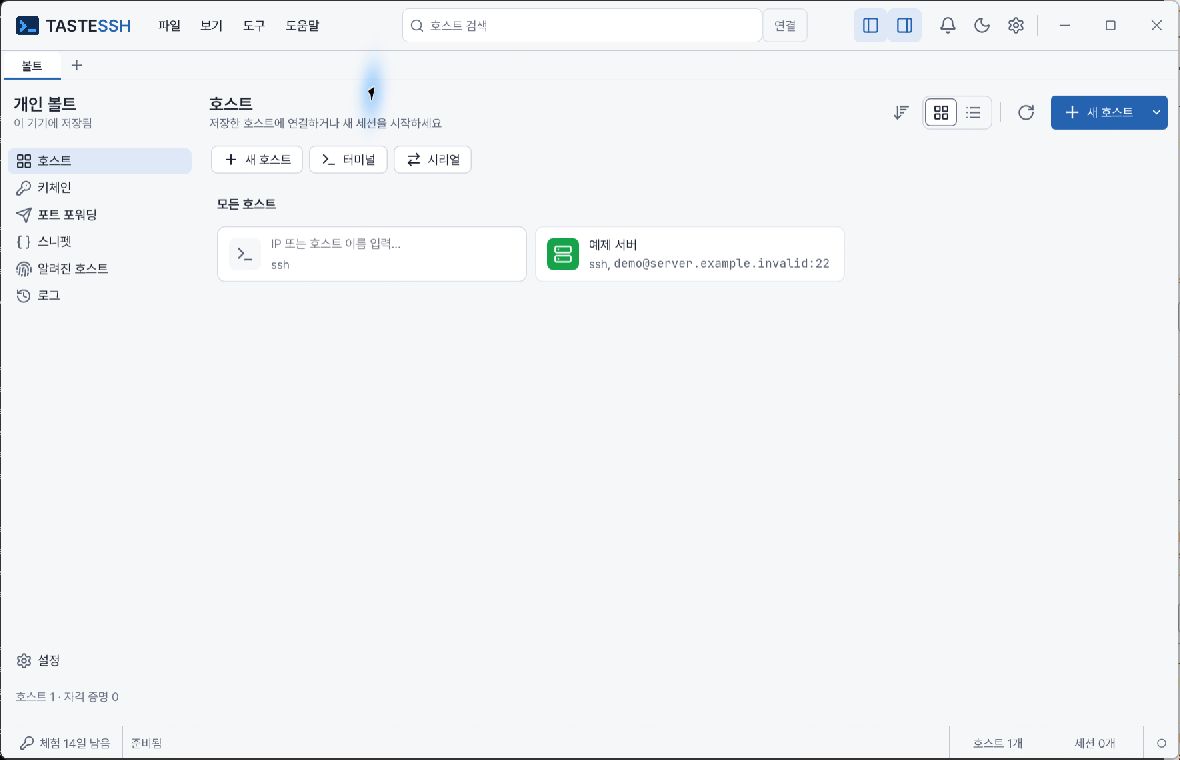
Vaults and example documentation servers in the light theme
The same host screen in the dark theme

Menus and visibility

Help → Open website opens the official website; Help → User guide opens this guide in a browser.

Menu order is File → View → Workspace → Monitoring → Tools → Help. Depending on Display settings, menus appear in the title area or a separate menu bar. File provides New host, New tab and Quit; View provides the details drawer; Tools provides hosts, keychain, port forwarding, snippets, known hosts, logs, command palette, update checks and settings. Help contains shortcuts, announcements and About. In 0.2.19, open Settings from Tools, not Help.

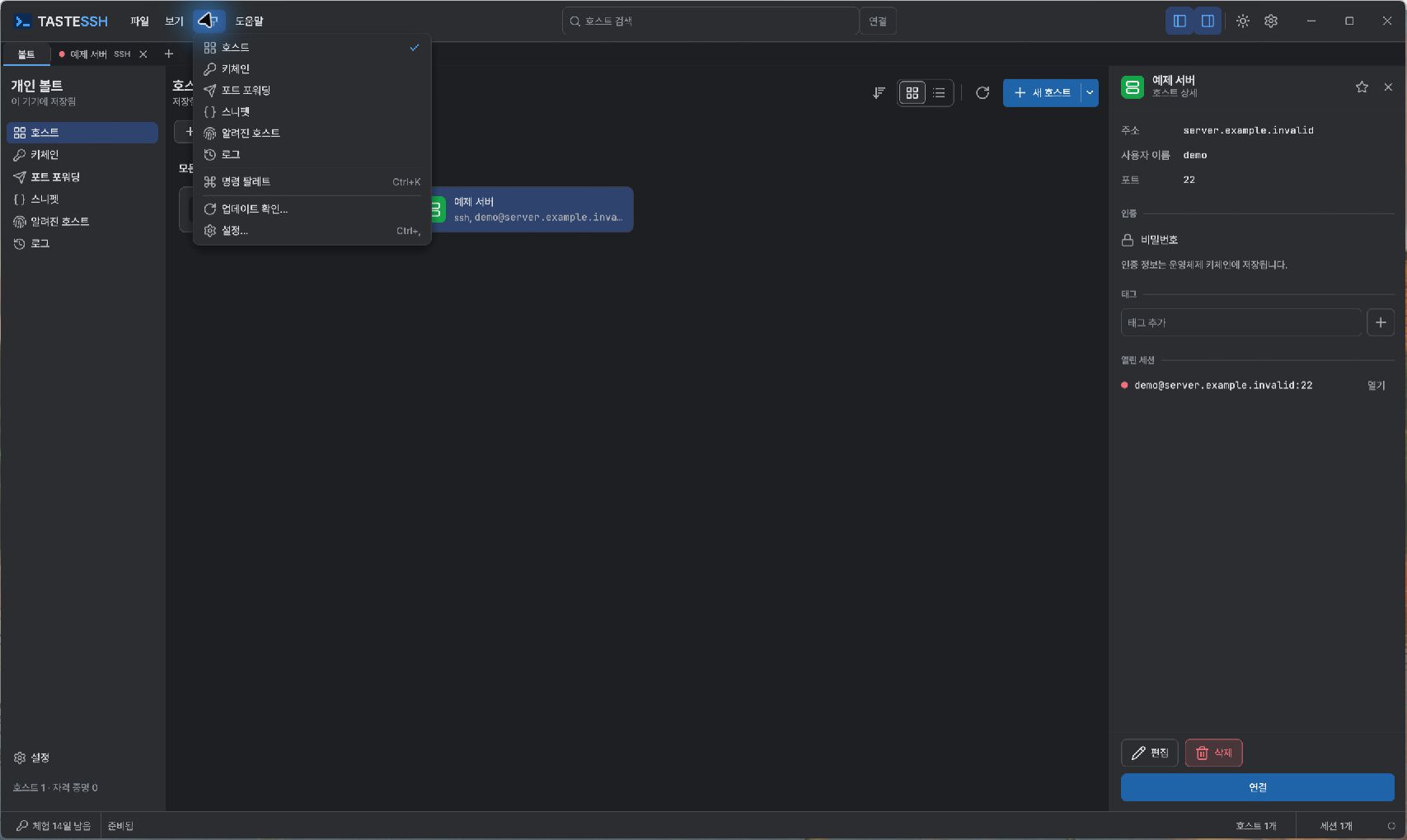
Tools → Check for updates, or Check for updates in the command palette, opens Software Update and starts checking. To open general Settings, use Tools → Settings or Ctrl+,. The host screenshots above show 0.2.18; the Tools menus below were captured in the actual 0.2.19 distribution.
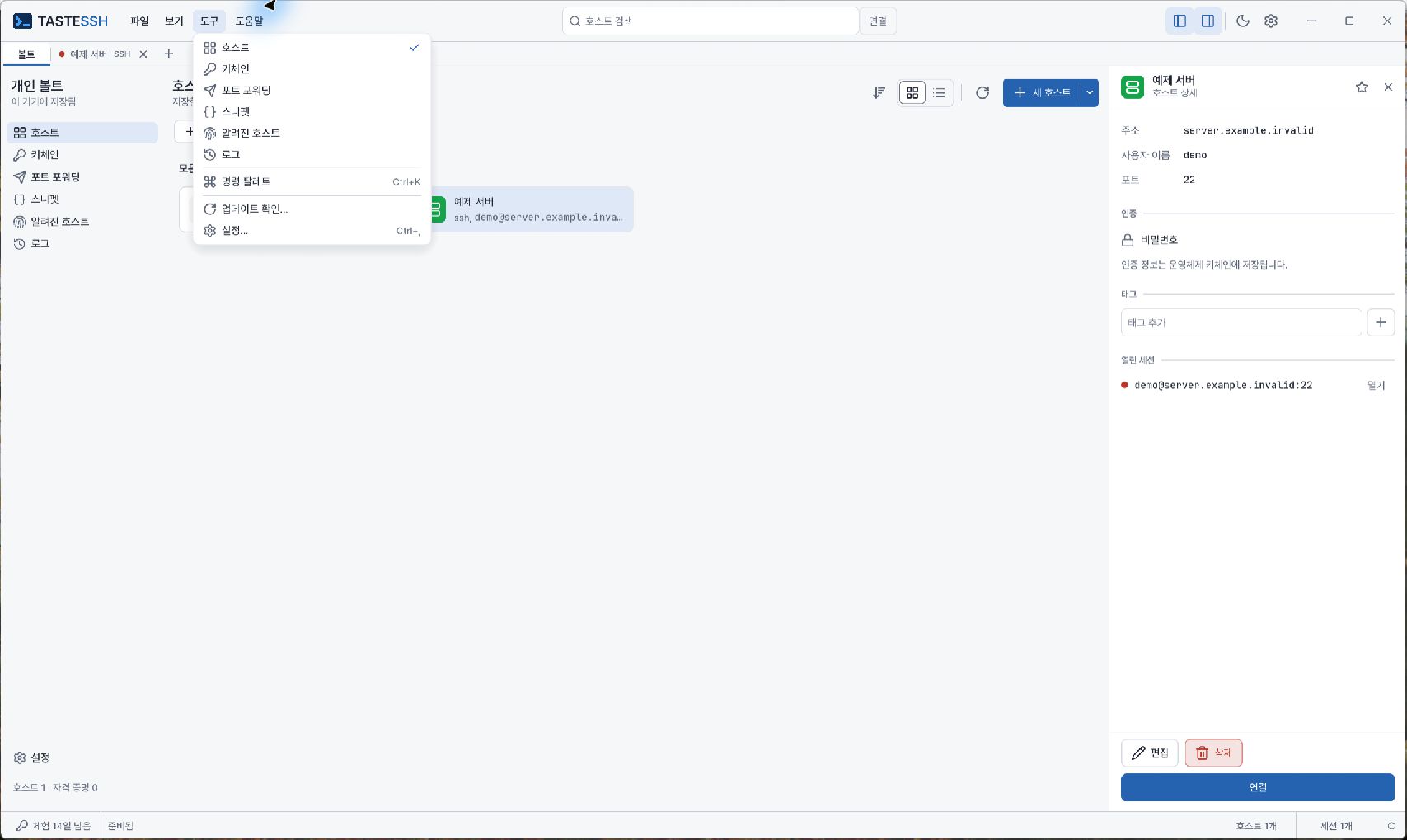
Update checks and Settings in the light 0.2.19 Tools menu
Update checks and Settings in the dark 0.2.19 Tools menu

The SFTP tab is hidden by default. Enable Settings → Window → Show SFTP tab or use SFTP in the command palette. Its × or Ctrl+W hides the screen; it does not terminate active connections or transfers. To terminate them, use Disconnect or Cancel transfer within SFTP. The Vault tab is the default workspace and cannot be closed.

Toggle the sidebar with Ctrl+B and the auxiliary panel with Ctrl+Alt+B. In narrow windows, panels may collapse or open as overlays. If you cannot find a command, open the command palette with Ctrl+Shift+P and search its name.

The expected result is the requested feature screen appearing. If visibility differs, first check version, window width, scale and visibility settings.

Interface areas

AreaPurpose
Top menusFind commands under File, View, Workspace, Monitoring, Tools and Help. Position follows Display settings.
Top tabsSwitch among the centered Vault label, SFTP, Serial or open sessions.
Left navigation in HostsManage hosts, keychain, port forwarding, snippets, known hosts and logs.
Central work areaShows the selected list or terminal.
Session's right auxiliary paneProvides snippets, session information and display tools.
Workspace tools panelSelects workspace layout and pane contents. See Workspaces and tab groups.
NotificationsCheck save, connection and transfer results and errors.

The right auxiliary pane and SFTP screen are different tools. Do not assume every function is grouped into tabs in the session auxiliary pane. You can also find functions by name in the Command palette.
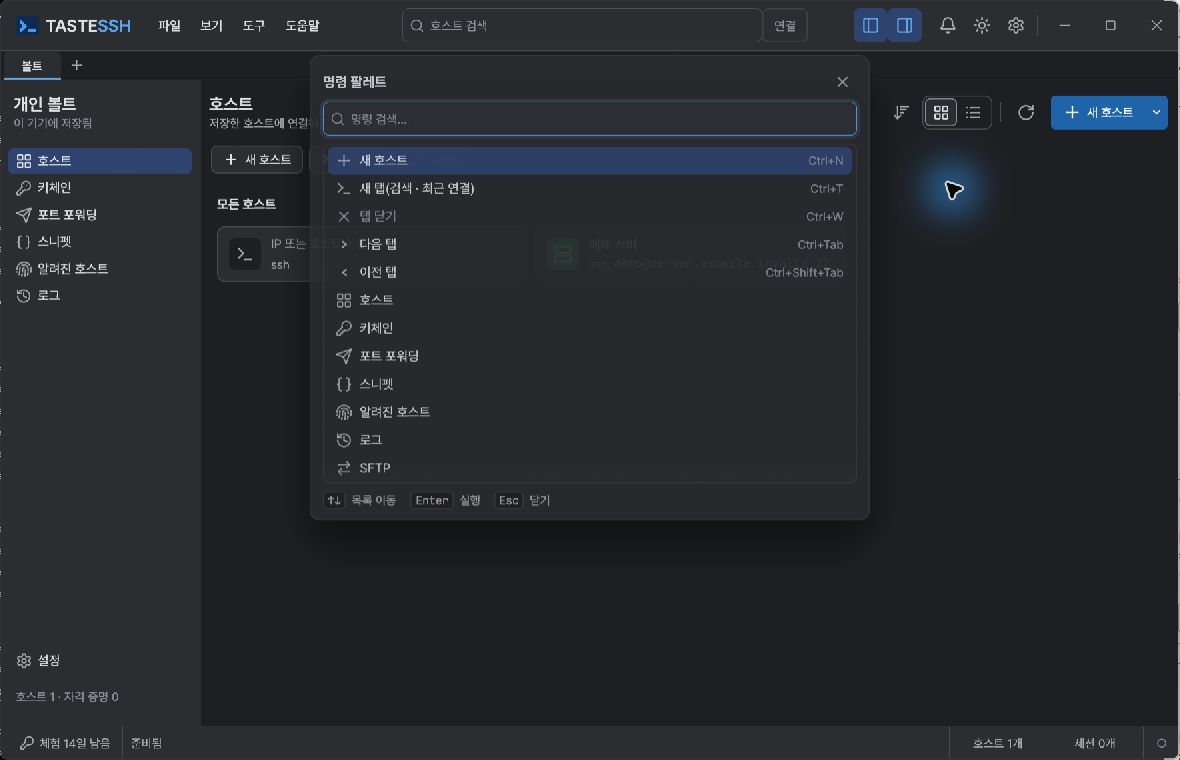
Command palette opened with Ctrl+K

Vault and top menus

Workspace appears below Monitoring, followed by Settings. There is no separator before Settings. Clicking Workspace opens the existing layout screen; it does not establish a new server connection or start a local process.

The menu order is File · View · Workspace · Monitoring · Tools · Help. In Workspace, use Layout, Settings, Pause all, Save new view and Apply saved configuration. Monitoring opens the overview or an already-open server monitoring tab. Opening a menu or navigating screens alone does not connect to servers or start collection. Monitoring, Workspace and Settings remain in the Vault's left menu too.

Vault-tab context menu

Right-click the Vault tab, or focus it and press Shift+F10 or the context-menu key, to open its navigation menu. Navigate to Vault sections, Workspace and Settings. Merely opening the menu does not connect or collect data. Vault is a pinned tab and has no Close command.

PreviousInstallation and first launchNextHosts, groups and vaults

On this page

  1. Menus and visibility
  2. Interface areas
  3. Vault and top menus
  4. Vault-tab context menu
Suggest an edit

Ads are not shown to subscribers or licence holders. Browse without ads